
How to Fix Slow Laptop in Windows 11 (Step-by-Step Guide)
Is your Windows 11 laptop taking forever to start, open apps, or switch between tasks?
A slow system can affect productivity, online meetings, browsing, and even simple daily work.
The good news is that in most cases, you can fix a slow laptop without buying a new one.
In this complete guide, we will explain why Windows 11 becomes slow and how you can
fix it step by step, even if you are not a technical expert.
1. Disable Startup Programs (Most Common Fix)
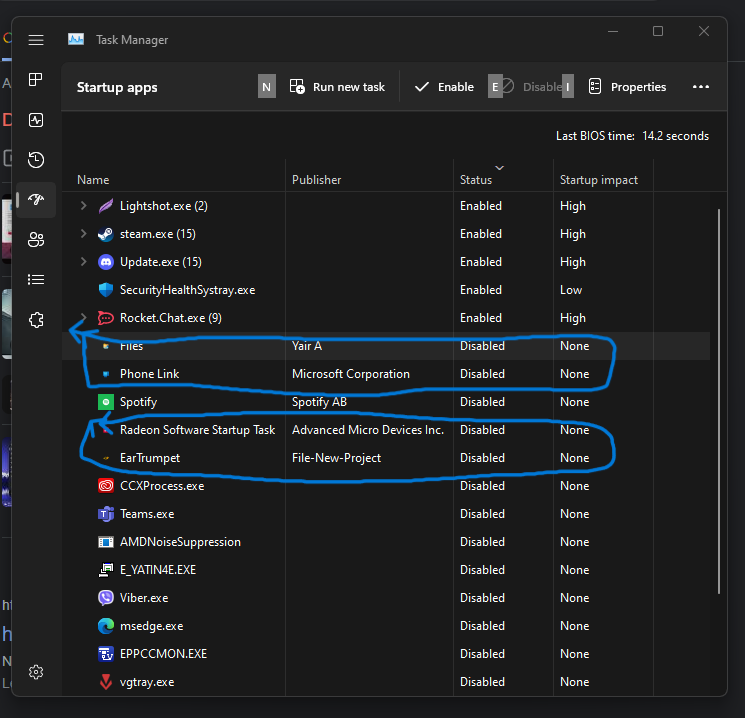
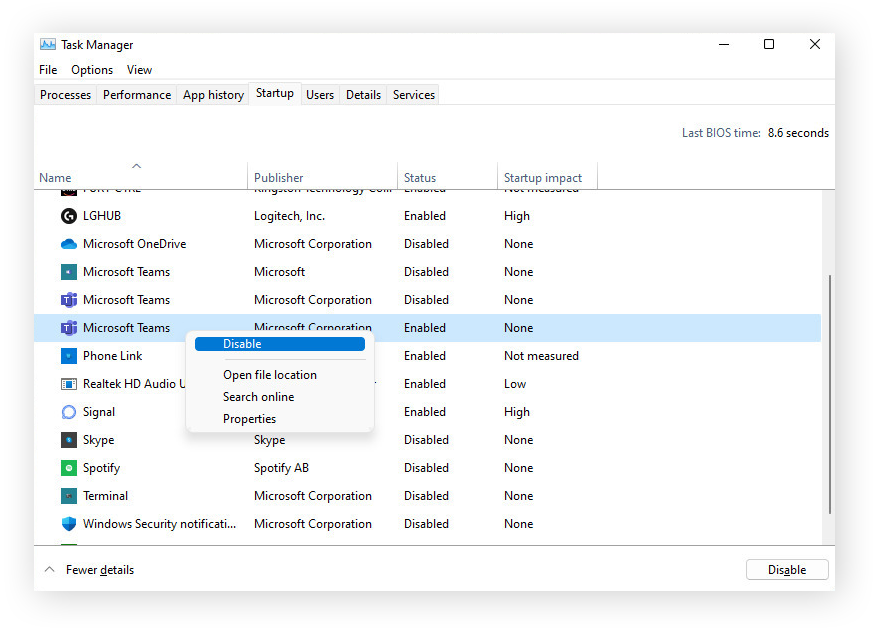
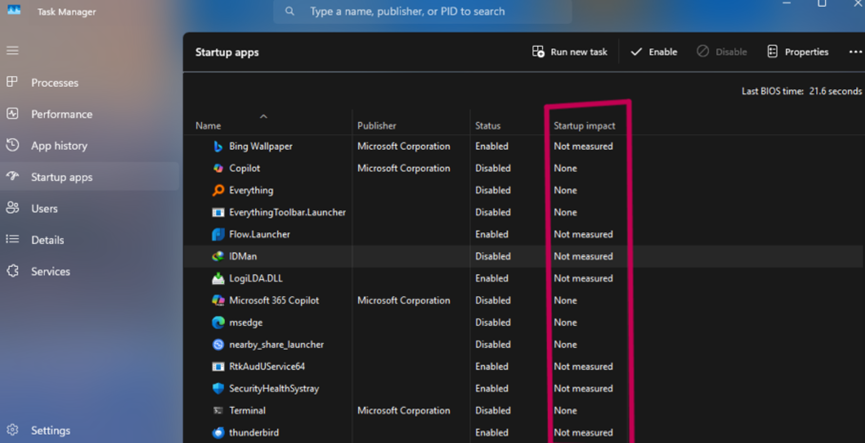
When too many apps start automatically, your laptop becomes slow right from boot.
How to Fix:
- Press Ctrl + Shift + Esc to open Task Manager.
- Go to the Startup tab.
- Look at the Startup Impact column.
- Right-click unnecessary apps and click Disable.
Disable apps like third-party updaters, messaging apps, or auto-launch tools that you don’t need immediately.
Result: Faster boot time and smoother performance.
2. Check for Windows Updates
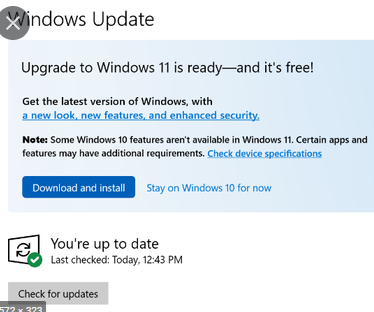
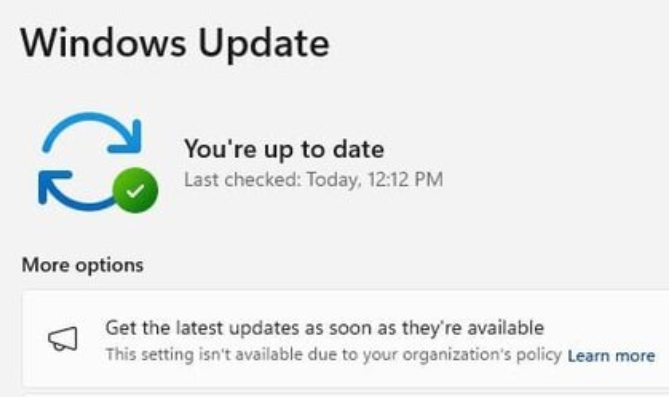
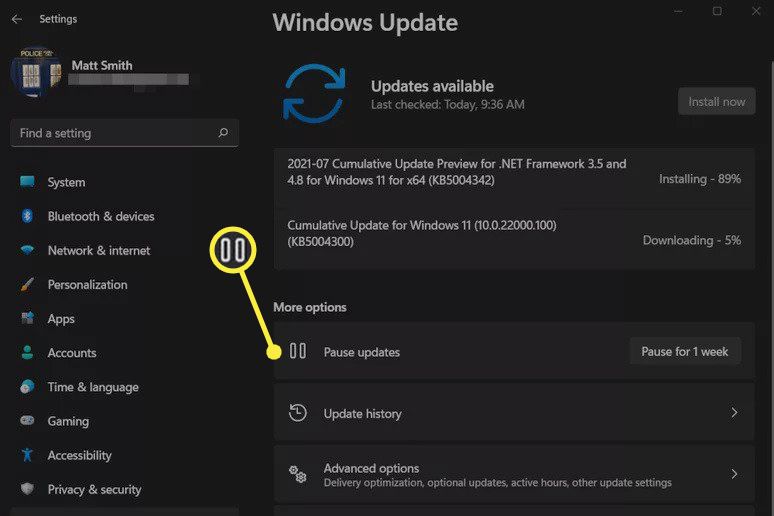
Sometimes slow performance happens because your system is missing important updates or performance patches.
Steps:
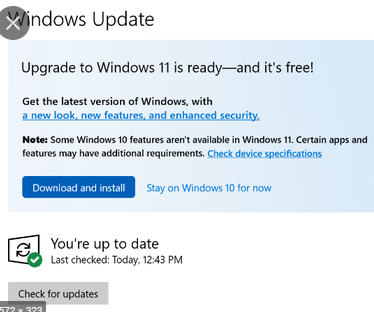
- Open Settings
- Click Windows Update
- Click Check for updates
- Install all available updates
- Restart your laptop
Why this helps: Updates fix bugs, improve speed, and enhance system stability.
3. Free Up Disk Space
If your system drive (usually C:) is almost full, Windows 11 will slow down.
Clean Storage:
- Go to Settings → System → Storage
- Click Temporary files
- Remove unnecessary files
- Enable Storage Sense
You can also:
- Delete unused software
- Remove large video files
- Clear Recycle Bin
Tip: Keep at least 20–25% of your drive free.
4. Scan for Viruses and Malware
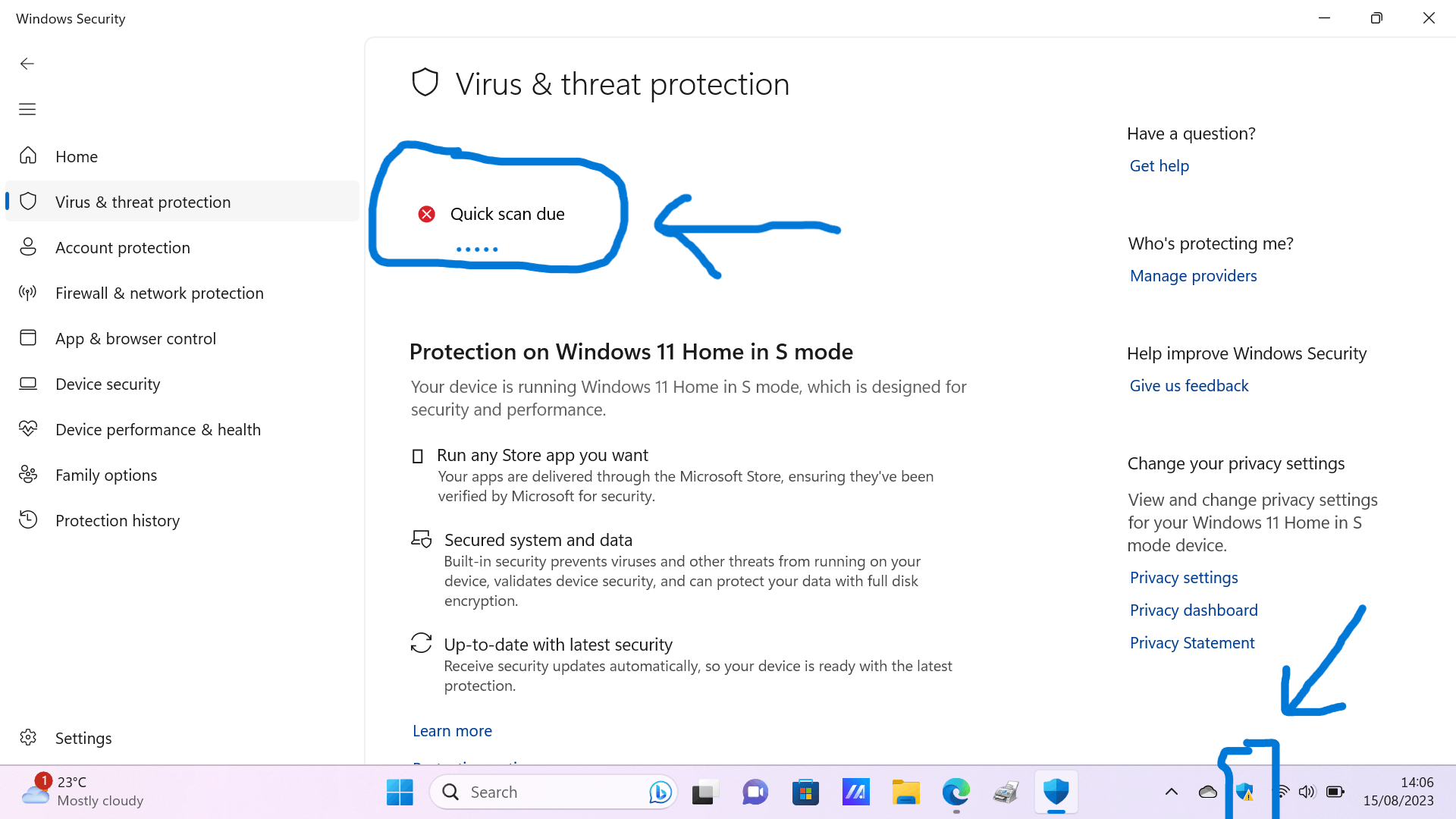
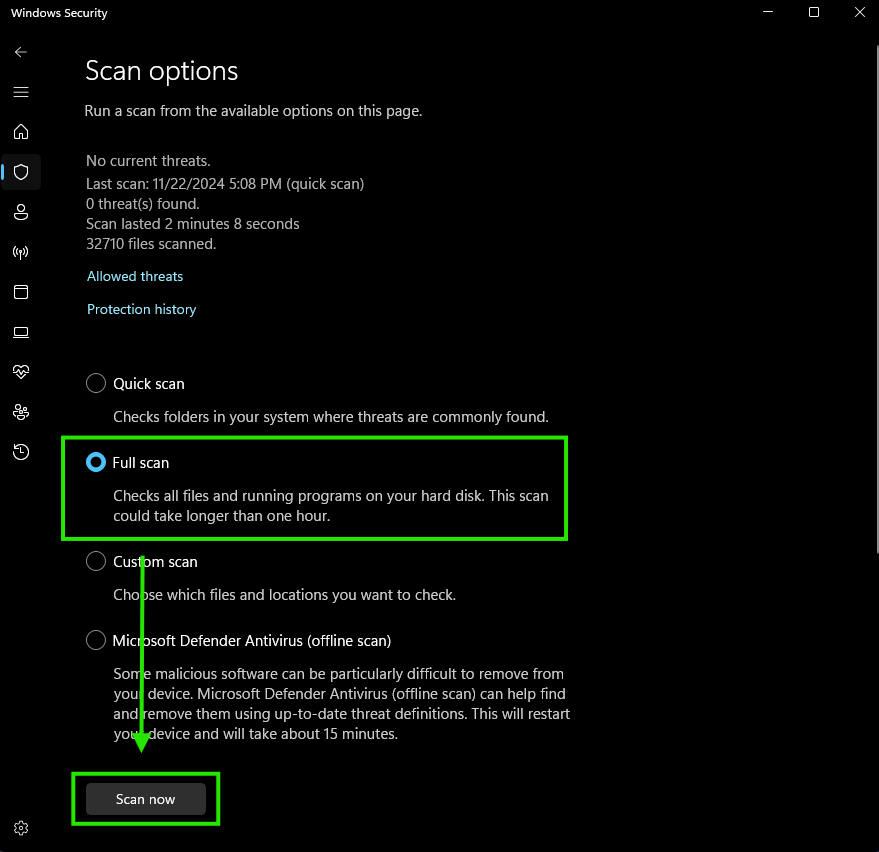
Malware runs in the background and consumes RAM and CPU.
Run a Scan:
- Open Windows Security
- Click Virus & Threat Protection
- Select Quick Scan
- For deeper check, choose Full Scan
If malware is detected, remove it immediately.
5. Increase Virtual Memory (Advanced but Effective)
If your laptop has 4GB or 8GB RAM, increasing virtual memory can help.
Steps:
- Search Advanced System Settings
- Click Performance → Settings
- Go to Advanced → Virtual Memory
- Uncheck “Automatically manage”
- Set Custom Size:
- Initial: 1.5× your RAM
- Maximum: 3× your RAM
Restart your system.
6. Reduce Visual Effects
Windows 11 has beautiful animations, but they consume resources.
How to Optimize:
- Search Performance
- Select Adjust the appearance and performance of Windows
- Choose Adjust for best performance
- Or manually disable:
- Animations
- Transparency effects
- Shadows
Your system will feel instantly lighter.
7. Uninstall Unnecessary Programs
Old software running in the background slows down your laptop.
Remove Apps:
- Open Settings → Apps → Installed Apps
- Sort by size
- Uninstall apps you don’t use
Avoid removing system apps unless you are sure.
8. Upgrade to SSD (Biggest Performance Boost)
If your laptop still uses HDD, upgrading to SSD can make it 5–10x faster.
Benefits of SSD:
- Faster boot time
- Quick file transfer
- Faster app loading
- Smooth multitasking
This is a hardware upgrade but gives dramatic improvement.
9. Reset Windows 11 (Last Option)
If nothing works, you can reset Windows without losing personal files.
Steps:
- Go to Settings → System → Recovery
- Click Reset this PC
- Choose Keep my files
This removes corrupted system files and freshens Windows.
Common Reasons Why Windows 11 Becomes Slow
- Low RAM (4GB or less)
- Too many startup apps
- Virus or malware
- Full storage
- Old hard drive
- Background updates
- Overheating
Quick Performance Checklist
- Disable startup apps
- Update Windows
- Clean disk space
- Scan for malware
- Reduce animations
- Remove unused programs
- Consider SSD upgrade
Final Words
A slow laptop does not always mean you need a new device. In most cases, proper optimization and small adjustments can significantly improve performance in Windows 11.
Start with simple steps like disabling startup apps and cleaning storage. If your laptop is older, upgrading to SSD and adding more RAM will give the best results.
If you would like, I can also:
- Write SEO meta title & description
- Create a hero banner image
- Suggest Facebook & Instagram hashtags


1 comment so far