
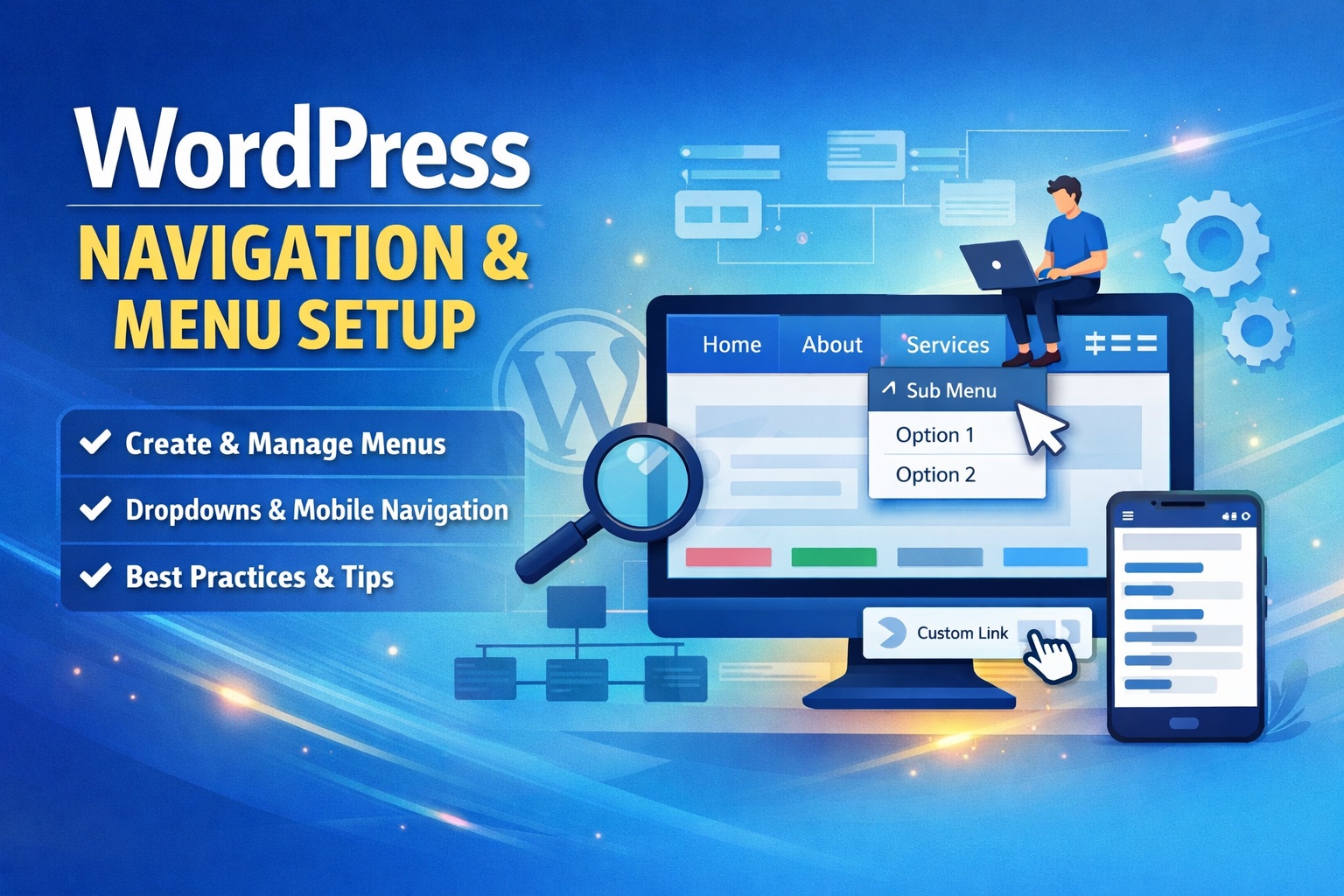
WordPress Navigation and Menu Setup
A well-structured navigation menu is the backbone of any successful WordPress website. It helps visitors find information quickly, improves user experience, and plays a significant role in SEO and website usability. Whether you are running a blog, business website, or online store, setting up navigation menus correctly ensures your content is accessible and organized.
This guide explains WordPress navigation and menu setup in a simple, step-by-step manner, even for beginners.
What Is a Navigation Menu in WordPress?
A navigation menu is a list of links displayed on your website that allows users to move between important pages such as Home, About, Services, Blog, and Contact. These menus are usually displayed in the header, footer, sidebar, or other menu locations defined by your theme.
WordPress offers a built-in menu management system that allows you to create, edit, and organize menus without writing any code.
Why Proper Menu Setup Is Important
A well-designed navigation menu offers multiple benefits:
- Improves website usability and user experience
- Helps visitors find key pages faster
- Reduces bounce rate
- Enhances SEO by improving site structure
- Makes your website look professional and organized
Poor navigation, on the other hand, can confuse users and cause them to leave your site.
Understanding Menu Locations in WordPress
Most WordPress themes support multiple menu locations. Common menu locations include:
- Primary Menu (main header menu)
- Secondary Menu (top bar or extra navigation)
- Footer Menu
- Mobile Menu
The available menu locations depend on the theme you are using. You can assign the same menu to multiple locations or create different menus for each location.
How to Create a Navigation Menu in WordPress
Creating a menu in WordPress is straightforward and does not require technical knowledge.
Step 1: Access the Menu Settings
From your WordPress dashboard, go to Appearance → Menus.
Step 2: Create a New Menu
Click on Create a new menu, enter a menu name (for example, “Main Menu”),
and click Create Menu.
Step 3: Add Menu Items
You can add different types of content to your menu, including:
- Pages
- Posts
- Categories
- Custom links
Select the items you want and click Add to Menu.
Step 4: Arrange Menu Items
Drag and drop menu items to reorder them. You can also create sub-menus by dragging an item slightly to the right under another item.
Step 5: Assign Menu Location
Select the desired menu location (such as Primary Menu) and click Save Menu.
Creating Dropdown (Sub) Menus
Dropdown menus help organize content when you have multiple pages under one category. For example, you can place “Services” as a parent item and list individual services under it.
To create a dropdown menu:
- Drag a menu item below another item
- Move it slightly to the right
- Save the menu
Dropdown menus make navigation cleaner and more structured.
Adding Custom Links to Menus
WordPress allows you to add custom links to your navigation menu. This is useful for:
- External websites
- Landing pages
- Call-to-action links such as “Buy Now” or “Contact Us”
Simply enter the URL and link text in the Custom Links section and add it to the menu.
Managing and Editing Existing Menus
You can edit menus anytime by:
- Adding or removing menu items
- Changing menu order
- Renaming menu labels
- Updating menu locations
Always remember to click Save Menu after making changes.
Navigation Menus for Mobile Devices
Modern WordPress themes automatically adapt menus for mobile devices. However, it is important to:
- Keep menu items minimal
- Use clear and short labels
- Avoid overcrowding the menu
Some themes allow you to create a separate mobile menu for better user experience.
Best Practices for WordPress Navigation Menus
To create an effective navigation menu, follow these best practices:
- Limit the number of main menu items
- Use clear and descriptive labels
- Place important pages first
- Keep dropdown menus simple
- Ensure menus work well on mobile devices
- Regularly review and update your menu
A clean and logical menu structure helps both users and search engines understand your website.
Common Menu Issues and How to Fix Them
Some common navigation issues include:
- Menu not appearing on the website (check menu location)
- Dropdown not working (theme or CSS issue)
- Too many menu items causing clutter
Most issues can be resolved by reassigning menu locations or checking theme settings.
Conclusion
WordPress navigation and menu setup is a crucial part of building a user-friendly website. With WordPress’s built-in menu system, you can easily create, customize, and manage navigation menus without technical skills. By following best practices and keeping your menu structure simple, you ensure a smooth browsing experience for your visitors and improve your website’s overall performance.
A well-organized menu not only guides users but also strengthens your website’s professionalism and credibility.

Leave a Reply