Understanding the WordPress Dashboard
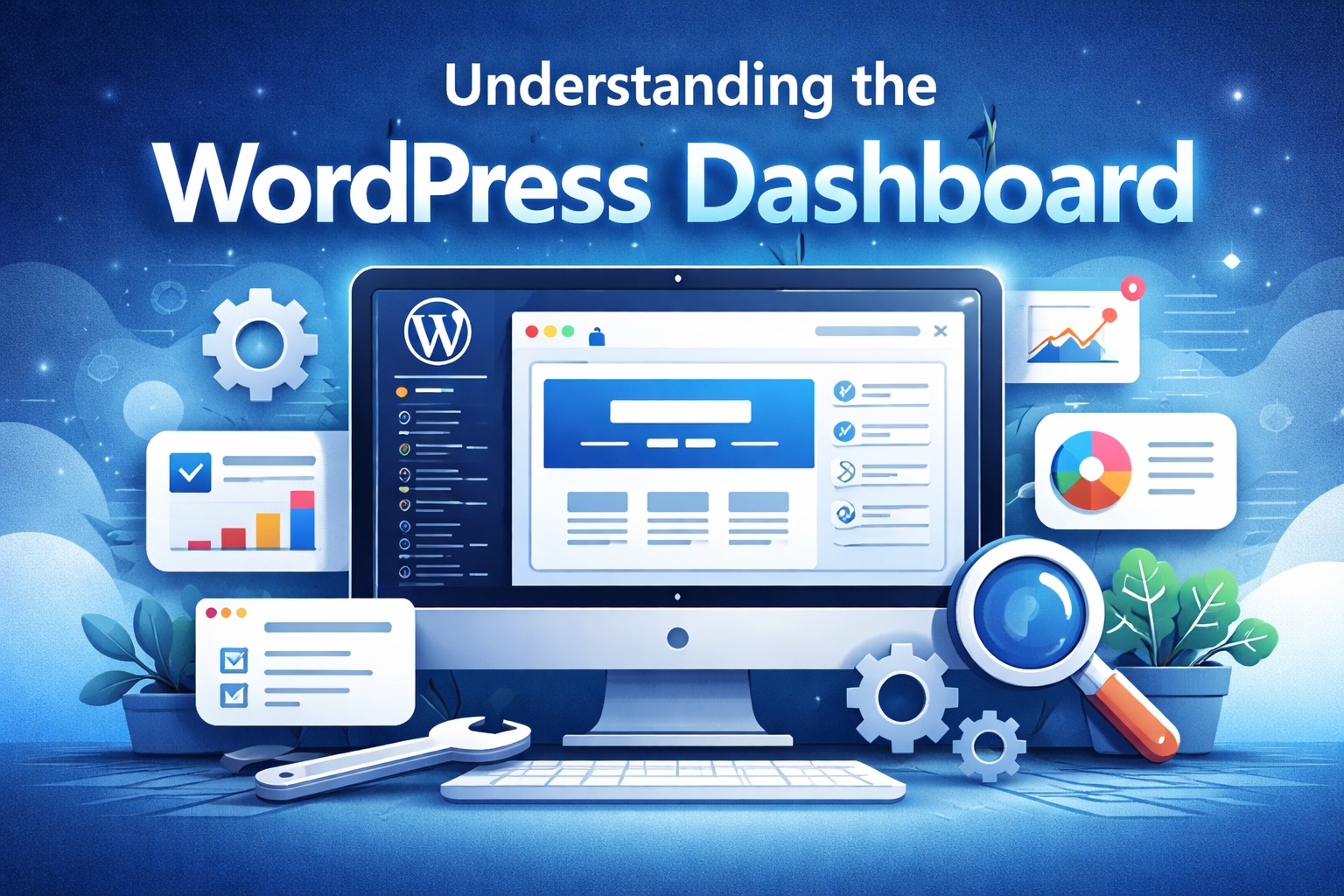
The WordPress Dashboard is the control center of your website. It is the first screen you see after logging into WordPress, and it allows you to manage content, design, functionality, users, and settings—all from one place.
For beginners, the dashboard may look overwhelming at first. However, once you understand what each section does, managing your website becomes simple, efficient, and even enjoyable.
What Is the WordPress Dashboard?
The WordPress Dashboard is the administration area where you control every aspect of your website. From publishing blog posts to installing plugins, changing themes, and adjusting site settings, everything starts here.
You can access the dashboard by visiting:
yourwebsite.com/wp-admin and logging in with your username and password.
Dashboard Home: Your Website Overview
The Dashboard Home provides a quick snapshot of your website’s activity and status.
What You’ll See on the Dashboard Home
- Website activity and recent posts
- Quick draft option for new content
- Notifications about updates
- WordPress news and events
This section helps you stay informed about what’s happening on your site without digging into individual settings.
The Admin Menu: Navigating the Dashboard
The left-hand menu is the backbone of the WordPress Dashboard. Each menu item represents a major function of your website.
Posts: Managing Blog Content
The Posts section is where you create and manage blog posts.
- Adding new blog posts
- Editing existing posts
- Organizing posts with categories and tags
- Managing comments related to posts
Posts are ideal for regularly updated content such as blogs, news, and articles.
Pages: Creating Static Content
The Pages section is used for static content such as:
- About Us
- Contact
- Services
- Privacy Policy
Unlike posts, pages are not organized by categories or tags and are generally used for timeless content.
Media: Handling Images and Files
The Media Library stores all uploaded files, including images, videos, PDFs, and documents.
- Upload new media files
- Edit image details such as alt text
- Replace or delete media
- Reuse files across multiple pages
Proper media management improves both site performance and SEO.
Comments: Managing User Engagement
The Comments section allows you to review and moderate user comments.
- Approve or reject comments
- Reply to comments
- Mark spam comments
- Delete unwanted messages
Effective comment management helps maintain a professional and safe website environment.
Appearance: Controlling Design and Layout
The Appearance menu controls how your website looks.
- Themes: Install, activate, or change themes
- Customize: Adjust colors, fonts, layouts, and branding
- Menus: Create and manage navigation menus
- Widgets: Add elements like search bars and recent posts
This section allows you to personalize your site without coding.
Plugins: Extending Website Functionality
Plugins add extra features to your website.
- Install new plugins
- Activate or deactivate plugins
- Update plugins
- Remove unused plugins
Plugins can add SEO tools, security features, contact forms, and much more.
Users: Managing Access and Roles
The Users section is essential for multi-user websites.
- Add new users
- Assign roles such as Admin, Editor, Author, or Subscriber
- Edit user profiles and permissions
Proper role management improves security and workflow efficiency.
Tools: Importing and Exporting Data
The Tools section includes utilities for:
- Importing content from other platforms
- Exporting WordPress content
- Site health checks
Settings: Configuring Website Behavior
The Settings menu controls your website’s core behavior.
- Site title and tagline
- Timezone and language
- Permalink structure
- Reading and discussion settings
Correct configuration ensures your site functions properly and remains SEO-friendly.
Customizing the Dashboard for Efficiency
WordPress allows you to customize the dashboard layout by rearranging widgets, hiding unused sections, and simplifying the interface.
Common Beginner Mistakes to Avoid
- Ignoring updates and notifications
- Installing too many plugins
- Changing settings without understanding their impact
- Using weak passwords for admin accounts
Final Thoughts
Understanding the WordPress Dashboard is essential for managing your website confidently. Once you become familiar with its sections and features, you gain full control over your site.
By mastering the dashboard early, you build a strong foundation for maintaining and growing a successful WordPress website.


1 comment so far