
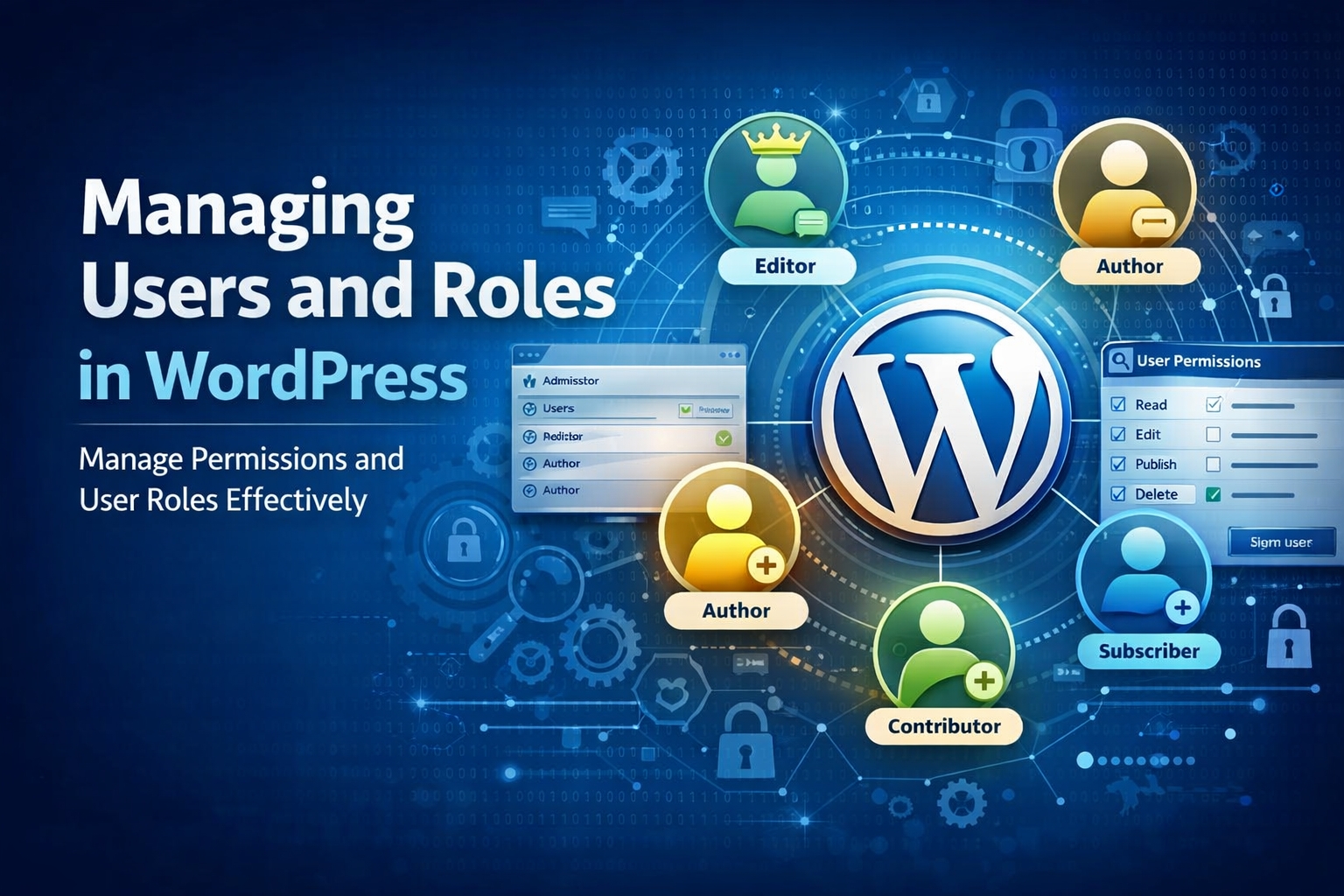
Managing Users and Roles in WordPress
Managing users effectively is a critical part of running a secure and well-organized WordPress website. Whether you operate a personal blog, a business website, or a large multi-author platform, understanding how users and roles work in WordPress helps you maintain control, improve collaboration, and protect your site from unauthorized actions.
This guide explains managing users and roles in WordPress in simple, human language, making it easy for beginners and administrators alike.
What Are Users and Roles in WordPress?
In WordPress, a user is anyone who has access to your website’s dashboard, while a role defines what that user is allowed to do. Roles control permissions such as editing content, publishing posts, managing plugins, or changing site settings.
By assigning the right role to each user, you ensure that everyone can do their job—without risking your site’s security or stability.
Default WordPress User Roles Explained
WordPress comes with several built-in user roles, each designed for specific responsibilities.
Administrator
The Administrator has complete control over the website.
- Manage themes and plugins
- Add, edit, and delete users
- Change site settings
- Publish and delete any content
This role should be limited to trusted users only.
Editor
Editors manage content but cannot change site settings.
- Publish, edit, and delete any posts or pages
- Moderate comments
- Manage categories and tags
Editors are ideal for content managers and senior writers.
Author
Authors can manage their own content.
- Write, edit, and publish their own posts
- Upload media files
They cannot edit or delete content created by others.
Contributor
Contributors can write content but need approval before publishing.
- Write and edit their own posts
- Cannot publish posts
- Cannot upload media
This role is useful for guest writers or interns.
Subscriber
Subscribers have the most limited access.
- Manage their own profile
- Read restricted or members-only content
Subscribers are commonly used on membership or community websites.
How to Add a New User in WordPress
Adding users in WordPress is straightforward:
- Go to Users → Add New in the dashboard
- Enter the username and email address
- Assign an appropriate user role
- Send login details to the user
Always assign the lowest role necessary to reduce security risks.
Editing and Managing Existing Users
As your website grows, you may need to update user roles or remove access.
- Change a user’s role at any time
- Reset passwords for security reasons
- Delete inactive or unused accounts
Regular user reviews help maintain a clean and secure website.
Best Practices for Managing User Roles
Proper user management improves both security and efficiency.
Recommended best practices:
- Avoid giving Administrator access unless absolutely necessary
- Remove users who no longer need access
- Use strong passwords and two-factor authentication
- Assign roles based on responsibilities, not convenience
Following these practices reduces the chances of accidental or malicious damage.
Custom User Roles in WordPress
Sometimes, default roles may not fit your needs. WordPress allows the creation of
custom user roles with specific permissions.
Custom roles are helpful when:
- You have multiple teams with different responsibilities
- You want to restrict access to specific features
- You run an editorial or membership-based website
Custom roles offer flexibility while maintaining control.
Using Plugins to Manage Users and Roles
Several WordPress plugins make user management easier and more advanced.
They can help you:
- Create and modify custom roles
- Control access to specific pages or features
- Monitor user activity
Plugins are especially useful for large websites with many contributors.
User Roles and Website Security
User management is directly linked to WordPress security.
Poor role assignment can lead to:
- Unauthorized changes
- Accidental deletion of content
- Increased vulnerability to attacks
By limiting permissions and monitoring activity, you significantly reduce security risks.
Managing Users on Multi-Author Websites
On blogs or news websites with multiple writers, proper role management is essential.
- Editors oversee content quality
- Authors focus on writing
- Contributors submit drafts for review
This structured approach improves workflow and content consistency.
Final Thoughts
Managing users and roles in WordPress is not just about access—it’s about responsibility and security. When roles are assigned correctly, your website runs smoothly, your team works efficiently, and your data remains protected.
By understanding WordPress user roles and following best practices, you create a safer, more organized, and more professional website that can grow with confidence.

Leave a Reply