
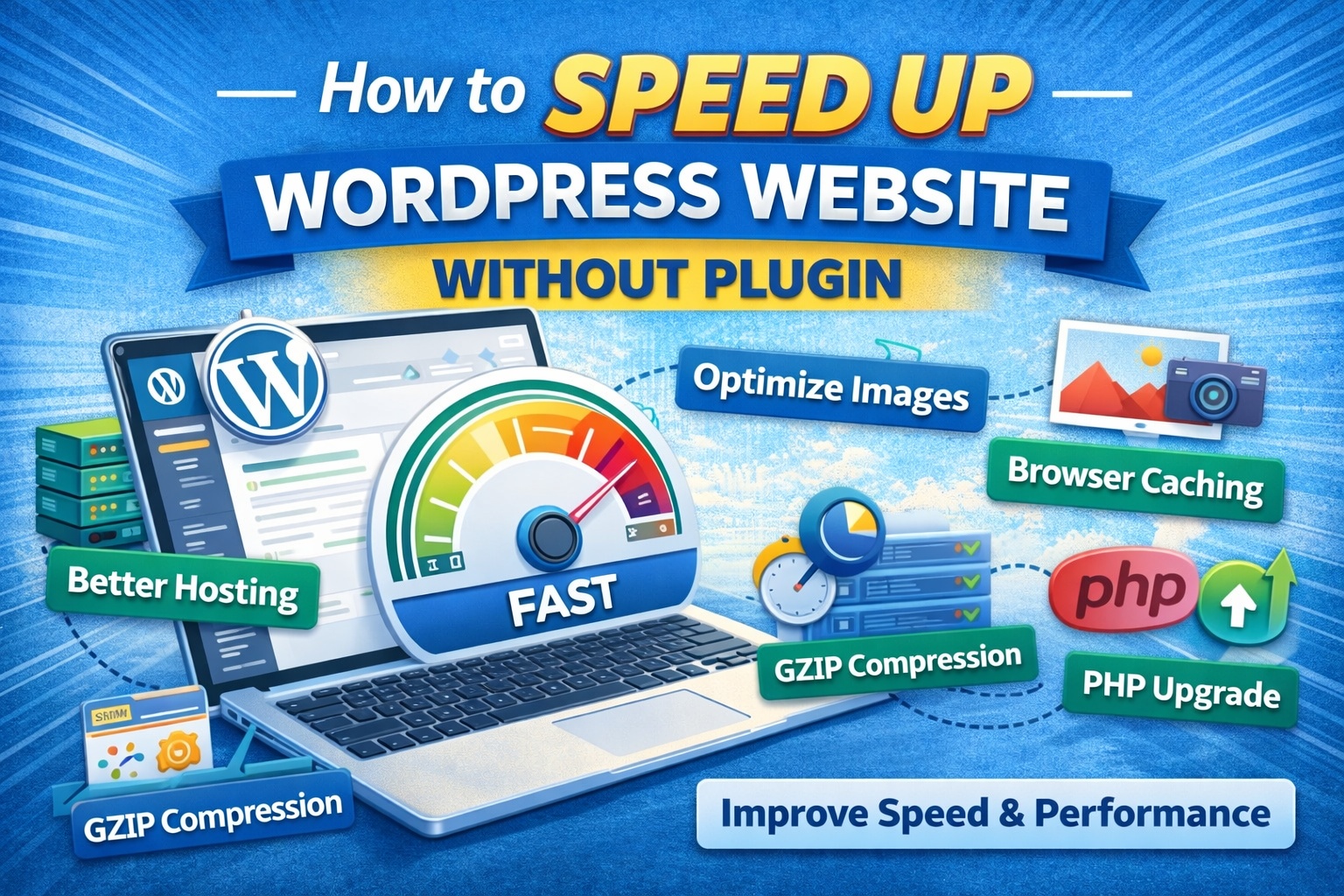
How to Speed Up WordPress Website Without Plugin
Why Website Speed Matters
Before we jump into solutions, let’s understand why speed is critical:
- Google uses page speed as a ranking factor
- Faster websites improve user experience
- Slow pages increase bounce rate
- Speed directly impacts conversions and revenue
Even a one-second delay can reduce engagement and sales.
1. Choose a Lightweight WordPress Theme
Your theme plays a major role in performance. Many multipurpose themes come packed with animations, sliders, and unnecessary features that slow down loading time.
Choose a lightweight, well-coded theme that focuses on performance. A clean theme loads fewer CSS and JavaScript files, which means faster rendering.
What to look for:
- Minimal design
- No built-in page builder overload
- Optimized code structure
- Regular updates
A lightweight theme alone can dramatically reduce load time.
2. Use High-Quality Web Hosting
No optimization will help if your hosting server is slow.
Shared hosting plans often overload servers with too many websites. If possible, upgrade to:
- Managed WordPress hosting
- Cloud hosting
- VPS hosting
Look for hosting that offers:
- SSD storage
- Latest PHP version
- Server-level caching
- CDN integration
Your hosting provider is the foundation of your website speed.
3. Optimize Images Before Uploading
Large image files are one of the biggest reasons for slow WordPress websites.
Instead of uploading raw images directly from your camera or design software:
- Resize images to the exact display dimensions
- Compress images before uploading
- Use modern formats like WebP
- Avoid uploading 3000px wide images if your content area is 800px
Smaller image size = faster loading time.
4. Enable GZIP Compression from cPanel
GZIP compression reduces file sizes before sending them to the browser.
You can enable GZIP manually using your hosting control panel or by editing the .htaccess file.
Add this code to your .htaccess file:
<IfModule mod_deflate.c>
AddOutputFilterByType DEFLATE text/plain
AddOutputFilterByType DEFLATE text/html
AddOutputFilterByType DEFLATE text/xml
AddOutputFilterByType DEFLATE text/css
AddOutputFilterByType DEFLATE application/xml
AddOutputFilterByType DEFLATE application/xhtml+xml
AddOutputFilterByType DEFLATE application/rss+xml
AddOutputFilterByType DEFLATE application/javascript
AddOutputFilterByType DEFLATE application/x-javascript
</IfModule>
This reduces file size and improves loading speed significantly.
5. Enable Browser Caching
Browser caching stores static files on the visitor’s device so they don’t need to reload everything on repeat visits.
Add this to your .htaccess file:
<IfModule mod_expires.c>
ExpiresActive On
ExpiresDefault "access plus 1 month"
</IfModule>
This improves performance for returning visitors.
6. Remove Unused Themes and Plugins
Even inactive themes and plugins can consume server resources.
Keep only:
- One active theme
- Necessary plugins
Delete everything else. A clean WordPress installation performs better.
7. Limit External Scripts
External scripts like:
- Google Fonts
- Ad networks
- Social media embeds
- Tracking pixels
Each adds extra HTTP requests.
Reduce unnecessary third-party scripts and host fonts locally if possible.
8. Optimize Your Database Manually
Over time, WordPress stores:
- Post revisions
- Spam comments
- Trash items
- Expired transients
You can clean your database using phpMyAdmin from your hosting panel.
Always take a backup before making changes.
9. Use Latest PHP Version
Older PHP versions are slower and less secure.
Log into your hosting panel and upgrade to the latest stable PHP version (like PHP 8.x).
Newer PHP versions can improve speed by up to 30–40%.
10. Reduce Homepage Content
A heavy homepage slows everything down.
Avoid:
- Too many sliders
- Auto-playing videos
- Large background images
- Too many recent posts
Keep your homepage clean and minimal.
11. Disable Hotlinking
Hotlinking happens when other websites use your images directly from your server.
You can block hotlinking via .htaccess to save bandwidth and improve performance.
12. Use a Content Delivery Network (CDN)
Although not a plugin, a CDN distributes your website content across global servers.
Visitors load content from the nearest location, which improves speed dramatically.
Many hosting providers offer built-in CDN integration.
Final Thoughts
Speeding up your WordPress website without plugins is completely possible — and often more effective.
Instead of installing multiple performance plugins, focus on:
- Better hosting
- Clean themes
- Optimized images
- Server-level improvements
- Reduced external scripts
The fewer unnecessary elements your website loads, the faster it will perform.
Remember: performance optimization is not a one-time task. Regularly monitor your website speed using tools like Google PageSpeed Insights and GTmetrix.
A fast website builds trust, improves rankings, and increases conversions.

Leave a Reply