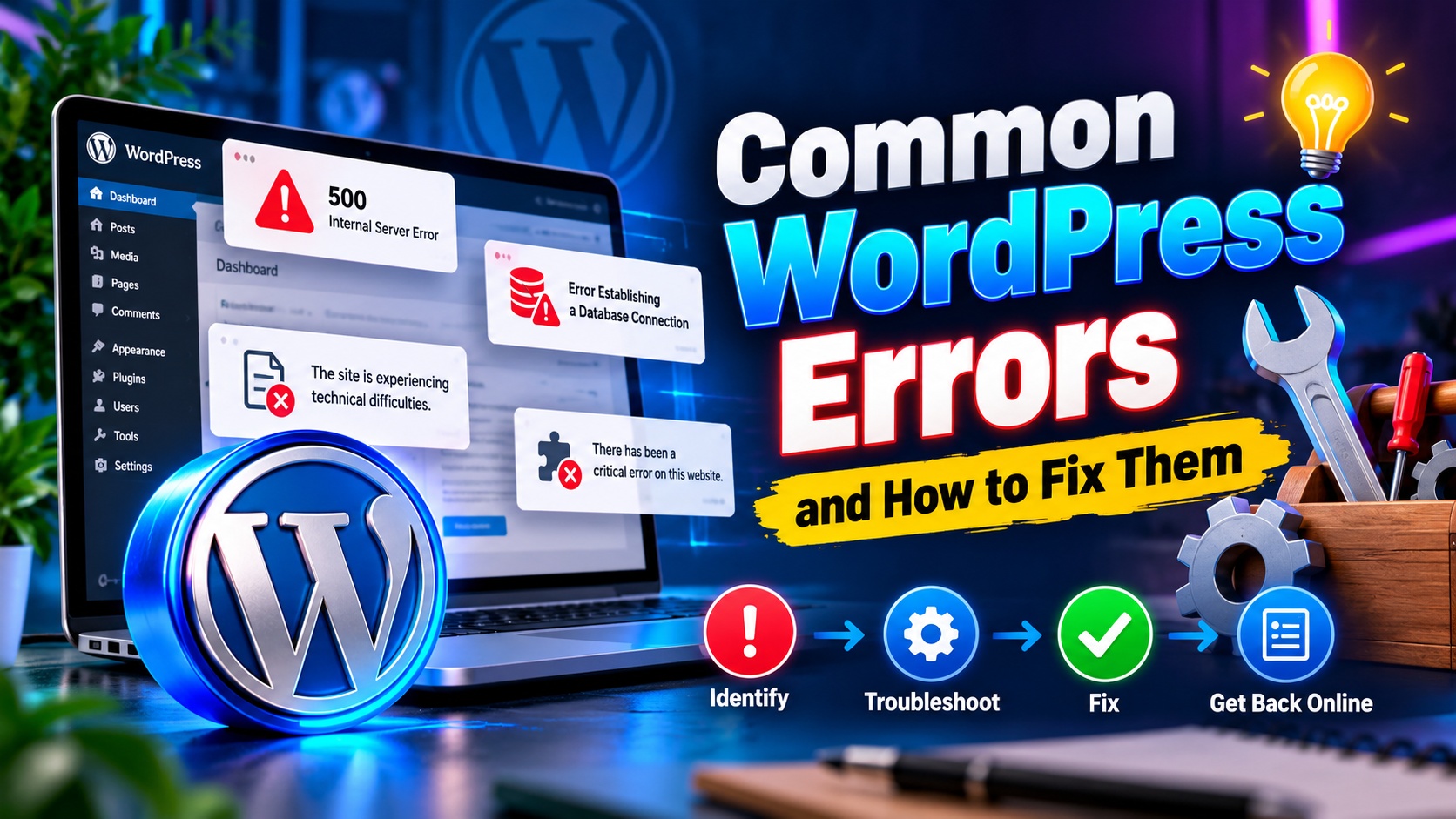
WordPress is one of the most reliable and flexible website platforms available today. However, like any powerful system, it can sometimes show errors. These issues may look technical or intimidating at first, but most of them have clear causes and straightforward solutions.
Understanding common WordPress errors and how to fix them will save you time, reduce stress, and help you maintain a professional website without unnecessary downtime.
1. The White Screen of Death (WSOD)
What It Looks Like
Your website suddenly displays a completely blank white screen with no error message.
Why It Happens
- Plugin conflict
- Theme issue
- PHP memory limit exhausted
- Syntax error in code
How to Fix It
- Disable all plugins
Access your website via hosting File Manager or FTP. Rename the “plugins” folder inside wp-content.
If the site works again, reactivate plugins one by one to find the problematic one.
- Switch to a default theme
Rename your active theme folder and WordPress will revert to a default theme.
- Increase PHP memory limit
Add this line to wp-config.php:
define('WP_MEMORY_LIMIT', '256M');
2. 500 Internal Server Error
What It Looks Like
You see a message saying: “500 Internal Server Error”
Why It Happens
- Corrupted
.htaccess file
- Plugin conflicts
- PHP memory issues
- Server configuration problems
How to Fix It
- Regenerate .htaccess file
- Rename the existing
.htaccess file
- Go to WordPress Dashboard → Settings → Permalinks → Click Save
- Disable plugins
Follow the same method used for WSOD.
- Contact hosting provider
Sometimes server-side settings require support assistance.
3. Error Establishing a Database Connection
What It Looks Like
A message stating: “Error establishing a database connection”
Why It Happens
- Incorrect database credentials
- Corrupted database
- Hosting server issue
- Database server overloaded
How to Fix It
- Check wp-config.php file
Ensure these details are correct:
- Database name
- Database username
- Database password
- Database host
- Repair the database
Add this line to wp-config.php:
define('WP_ALLOW_REPAIR', true);
Then visit: yourwebsite.com/wp-admin/maint/repair.php
- Contact hosting support
They can confirm whether the database server is running properly.
4. 404 Errors on Posts
What It Looks Like
Your homepage works, but posts or pages show a 404 error.
Why It Happens
- Broken permalink structure
- Corrupted
.htaccess file
How to Fix It
- Go to Settings → Permalinks
- Click Save Changes without modifying anything
This regenerates the permalink structure and usually fixes the issue.
5. Memory Exhausted Error
What It Looks Like
A message similar to: “Allowed memory size exhausted”
Why It Happens
Your website requires more PHP memory than allocated by default.
How to Fix It
Add this line to wp-config.php:
define('WP_MEMORY_LIMIT', '256M');
If the problem continues, ask your hosting provider to increase the server memory limit.
6. Stuck in Maintenance Mode
What It Looks Like
“Briefly unavailable for scheduled maintenance. Check back in a minute.”
Why It Happens
An update was interrupted, leaving WordPress in maintenance mode.
How to Fix It
- Access your website files
- Delete the
.maintenance file from the root directory
Your site should return immediately.
7. Login Page Refreshing or Redirecting
What It Looks Like
You enter login credentials, but the page refreshes without logging you in.
Why It Happens
- Corrupted cookies
- Plugin conflict
- Incorrect site URL settings
How to Fix It
- Clear browser cookies and cache
- Disable plugins
- Check WordPress Address and Site Address in Settings → General
8. Image Upload Issues
What It Looks Like
Images fail to upload or show broken thumbnails.
Why It Happens
- Incorrect file permissions
- Memory limit issue
- Plugin conflicts
How to Fix It
Set folder permissions to:
You can adjust these via hosting File Manager or FTP.
9. Mixed Content Warning (HTTPS Issues)
What It Looks Like
Your website shows a security warning in the browser.
Why It Happens
Some resources (images, scripts, styles) are loading over HTTP instead of HTTPS.
How to Fix It
- Update WordPress Address and Site Address to HTTPS
- Use a search-and-replace plugin to update old HTTP URLs
- Install an SSL management plugin if necessary
Preventing WordPress Errors
While errors can happen, prevention is always better than fixing problems later.
Best Practices
- Keep WordPress core updated
- Update plugins and themes regularly
- Use reliable hosting
- Install quality plugins only
- Take regular backups
- Use a staging site before major updates
A proactive maintenance strategy reduces the risk of unexpected issues.
Final Thoughts
Most WordPress errors look more serious than they actually are. With a calm approach and systematic troubleshooting, nearly all common issues can be resolved quickly.
By understanding the causes behind these errors, you gain better control over your website. Regular updates, backups, and careful plugin management ensure long-term stability and performance.
WordPress is powerful, flexible, and dependable — and with the right knowledge, you can handle common errors confidently and keep your website running smoothly at all times.